Read the narration
Welcome to Cana Crew. This video shows you how to use it, one role at a time. Everyone first — that part is for all of you. Then volunteers, supervisors, and administrators. Jump to your chapter any time.
Everyone
Your invitation email has a link. Tap it, pick a password, and you're in — your email is your sign-in. On an Android phone, get the free Cana Crew app from Google Play. On an iPhone, add it to your home screen. Either way, it stays signed in. Then turn on alerts: My card, then On this phone. Changes reach you the moment they happen, instead of by email.
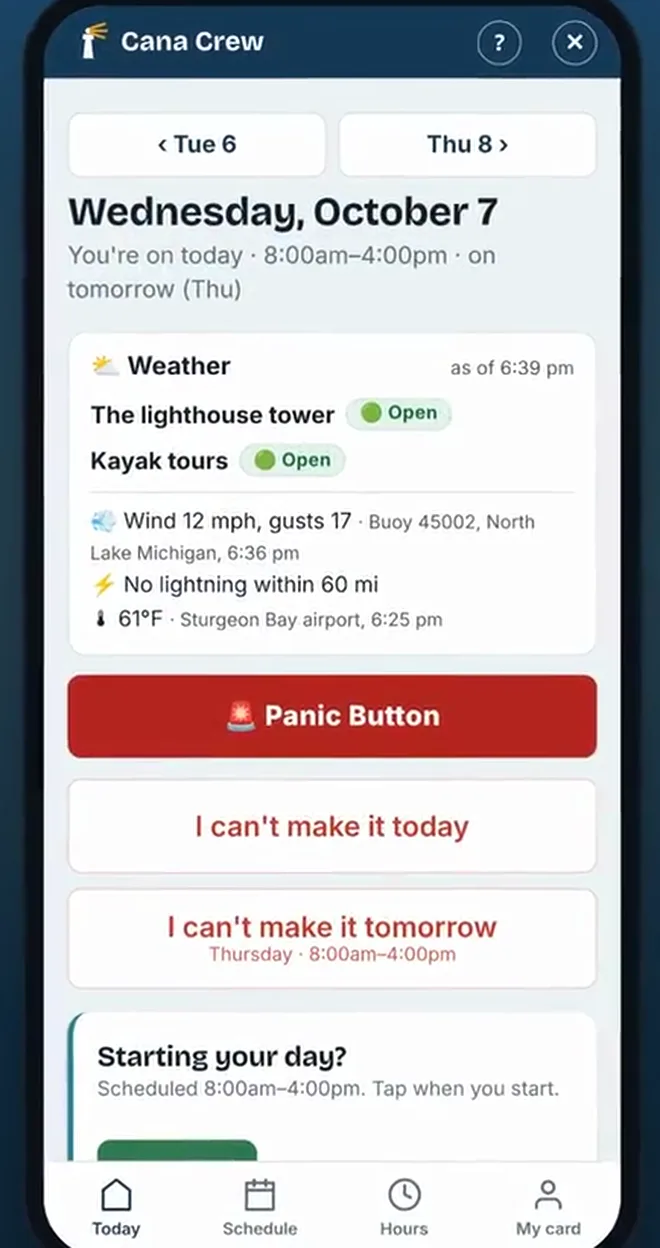
Today is home base. At the top, the date and the status box: open or closed, and the weather. Below that, who's working, as bars across the day, the tours and groups coming in, and any note from the supervisor.
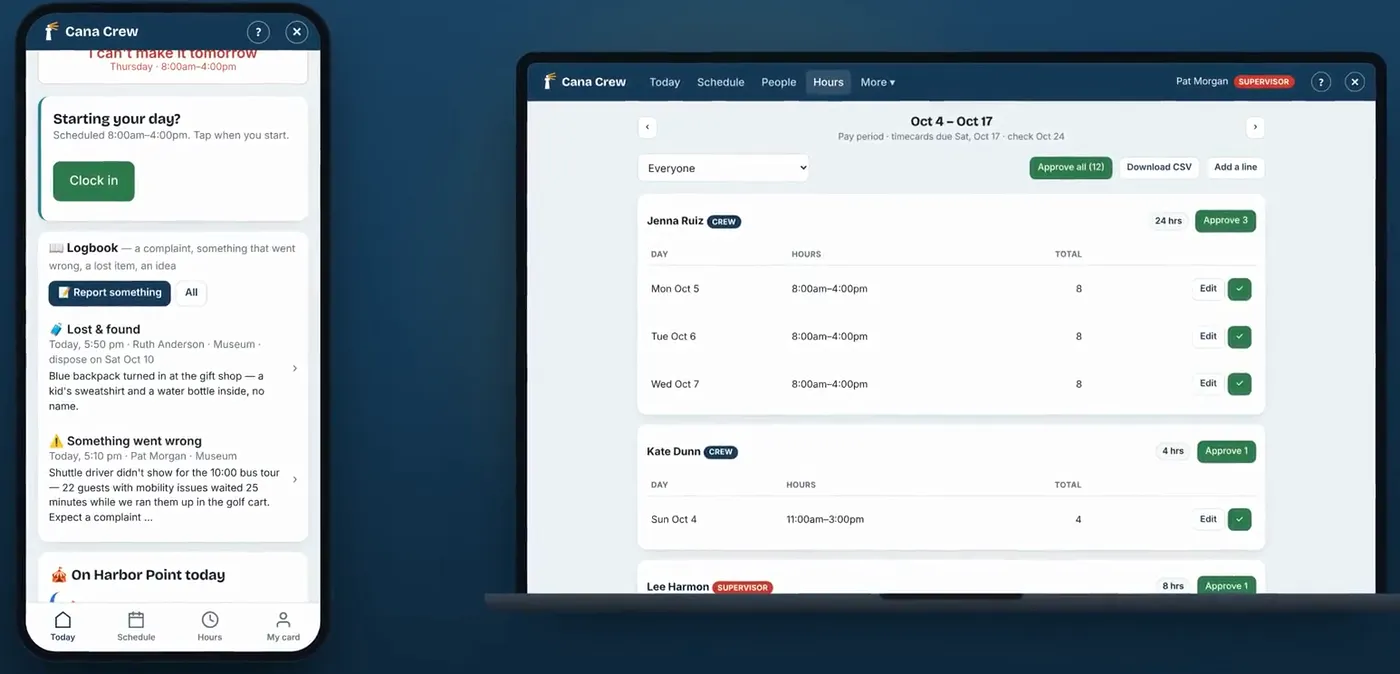
On a day you're working, tap Clock in when you start, and Clock out when you're done. Those times are your hours. Running behind? Tap your own name on the bars, then Running late, and the supervisor on duty knows how many minutes.
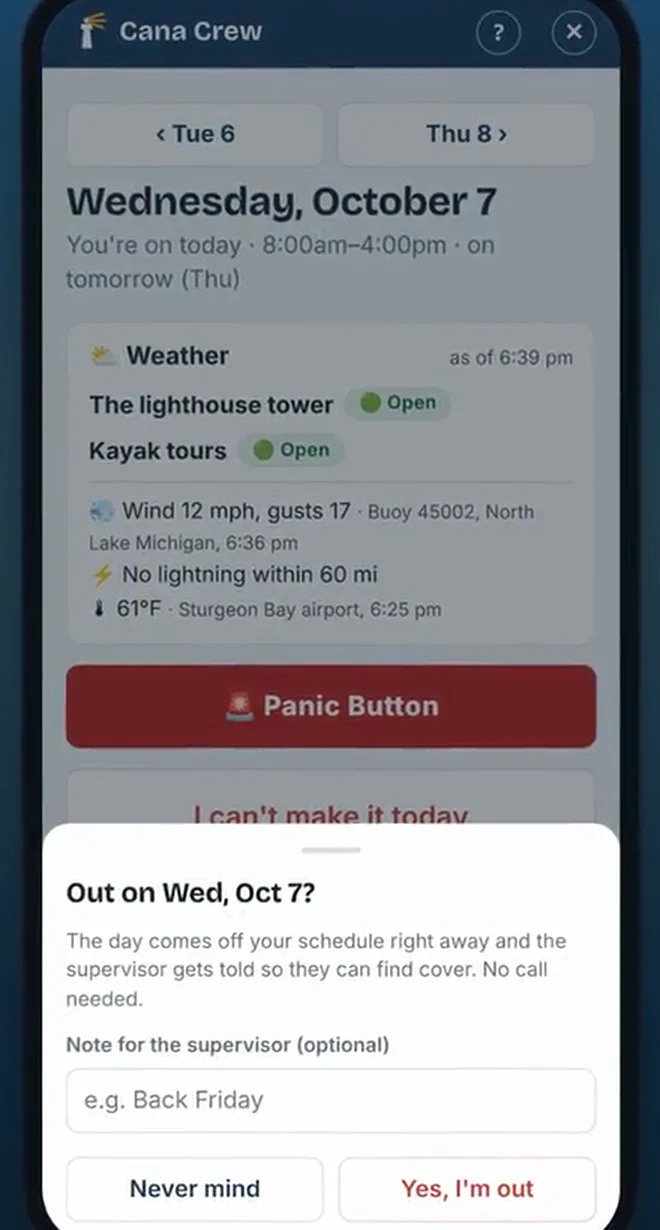
Can't make a day? Go to that day and tap Can't make it. No reason needed. You come off the schedule, and the app starts finding cover by itself. Going away for a stretch? On Schedule, tap I'll be away, then tap the days.
When a day needs one more person, it shows on Today under Open shifts you can take. First to tap gets it. If nobody does, the app asks people by email, one at a time — so if a Can you work email comes to you, one tap answers it.
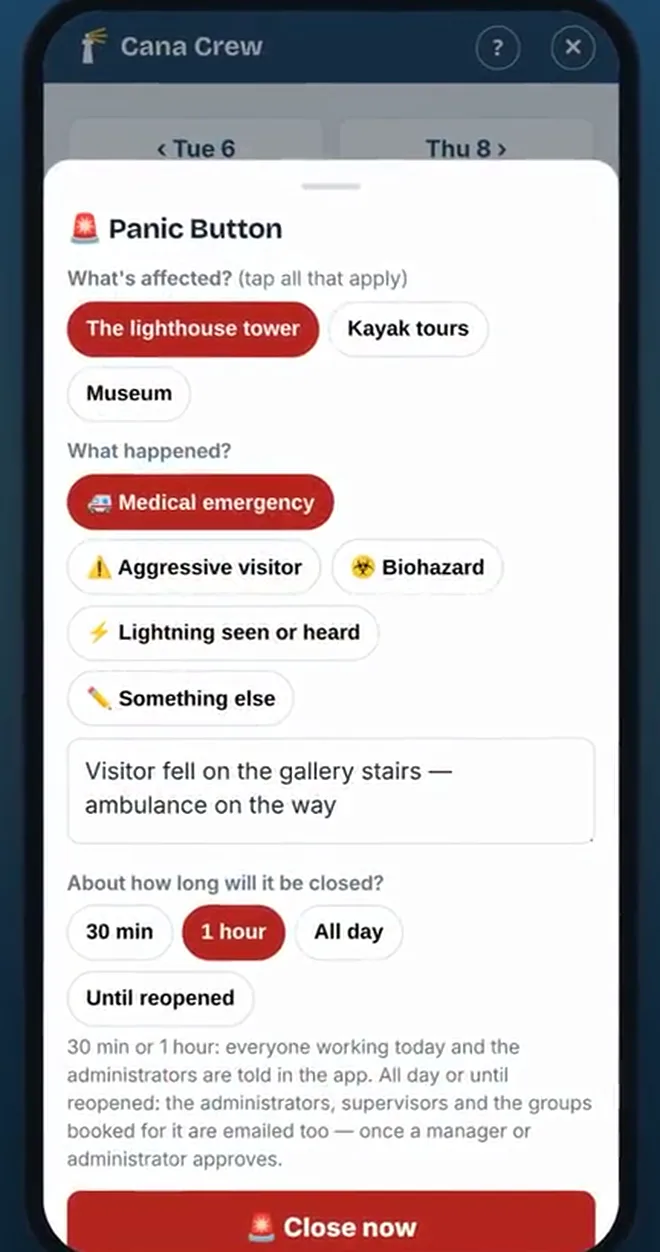
On a day you're working, Today has two buttons for trouble. The red Panic Button: tap what happened. A medical emergency or a biohazard closes the area right away. Lightning you see goes to the supervisor to decide. A missing child, an aggressive visitor, or someone who didn't pay alerts everyone without closing anything. Either way, the steps for what to do open on your screen at once.
The other button is Something needs doing: a restroom, the trash, a spill, a loose railing. Say what and where, and pick how urgent. One, day to day. Two, could get worse. Three, major — area closed off. The supervisor on duty sends someone, and you can watch it move along, right under the button.
Report something puts a complaint, an injury, an idea or a lost item in the Logbook, so the next shift isn't caught by surprise. My card holds your days — count on me, might work, can't work — your time away, the calendar, and your password. Stuck? The question mark at the top of any page opens help for that page.
Volunteers
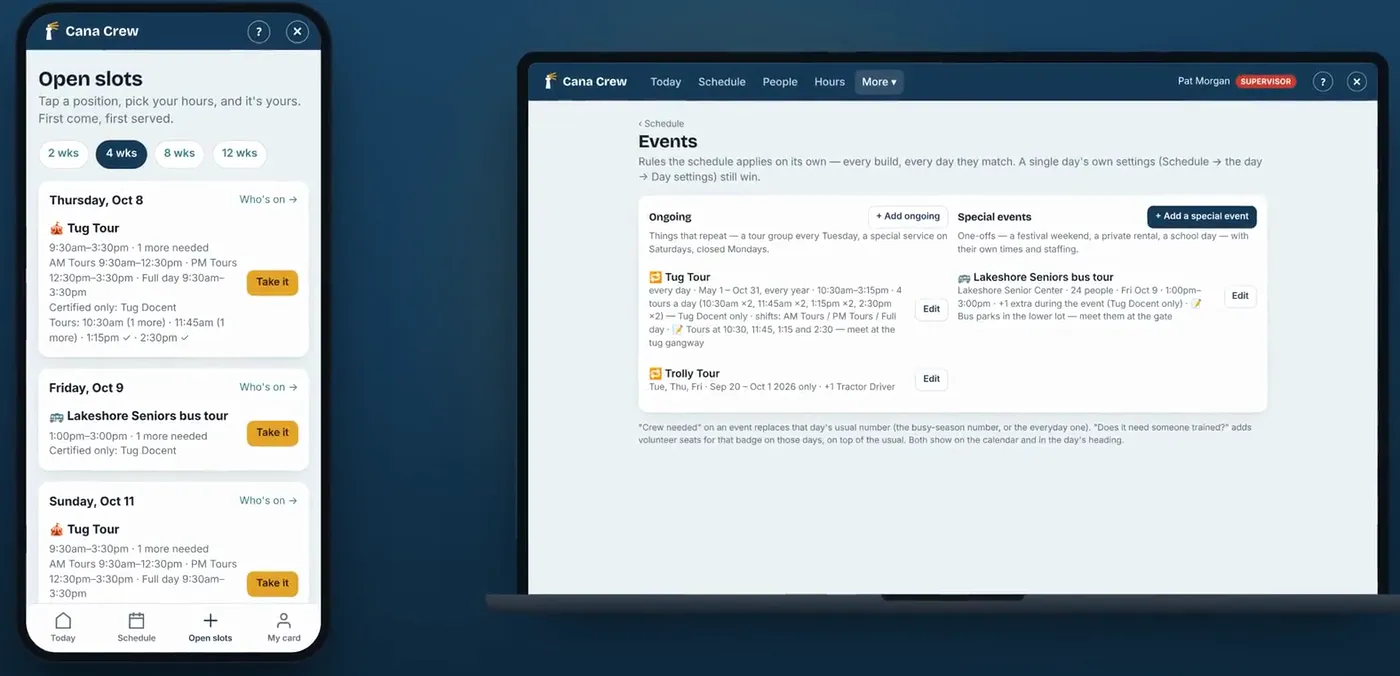
Volunteers pick their own days and hours. Open slots show the jobs that need someone — a docent, a tug guide, a driver. Tap one, pick your hours, and it's yours. Jobs that need training only go to people with that skill badge.
Can't come after all? Drop it any time, with no phone call — the slot reopens for someone else. And your hours are kept for the records, all season.
Supervisors
Supervisors run the day. 15 minutes after each start time, the supervisor on duty gets one phone alert: Is everyone here? On Today, tap Here for each person who's arrived — or No-show, and the app starts asking for a replacement right away.
Tap anyone's name on the bars for more: Here, No-show, Left early, Swap, or Take off. Add someone puts an extra person on the day, and Add a service brings in a tug guide or a driver for set hours. It's on the schedule at once, and the person is told.
The Needs doing list is yours to hand out. Tap a job and pick who's on site to do it — each with a call button — or send a bigger fix to an administrator. A level three rings like an alarm, and the administrators hear about it too.
When the Panic Button closes something, the supervisor on duty makes the call. Come and see, then tap Reopen — or Send closure notices, with about when it will reopen. That emails the groups booked and your outside contacts. A test, or a mistake? Cancel calls it off as if it never happened.
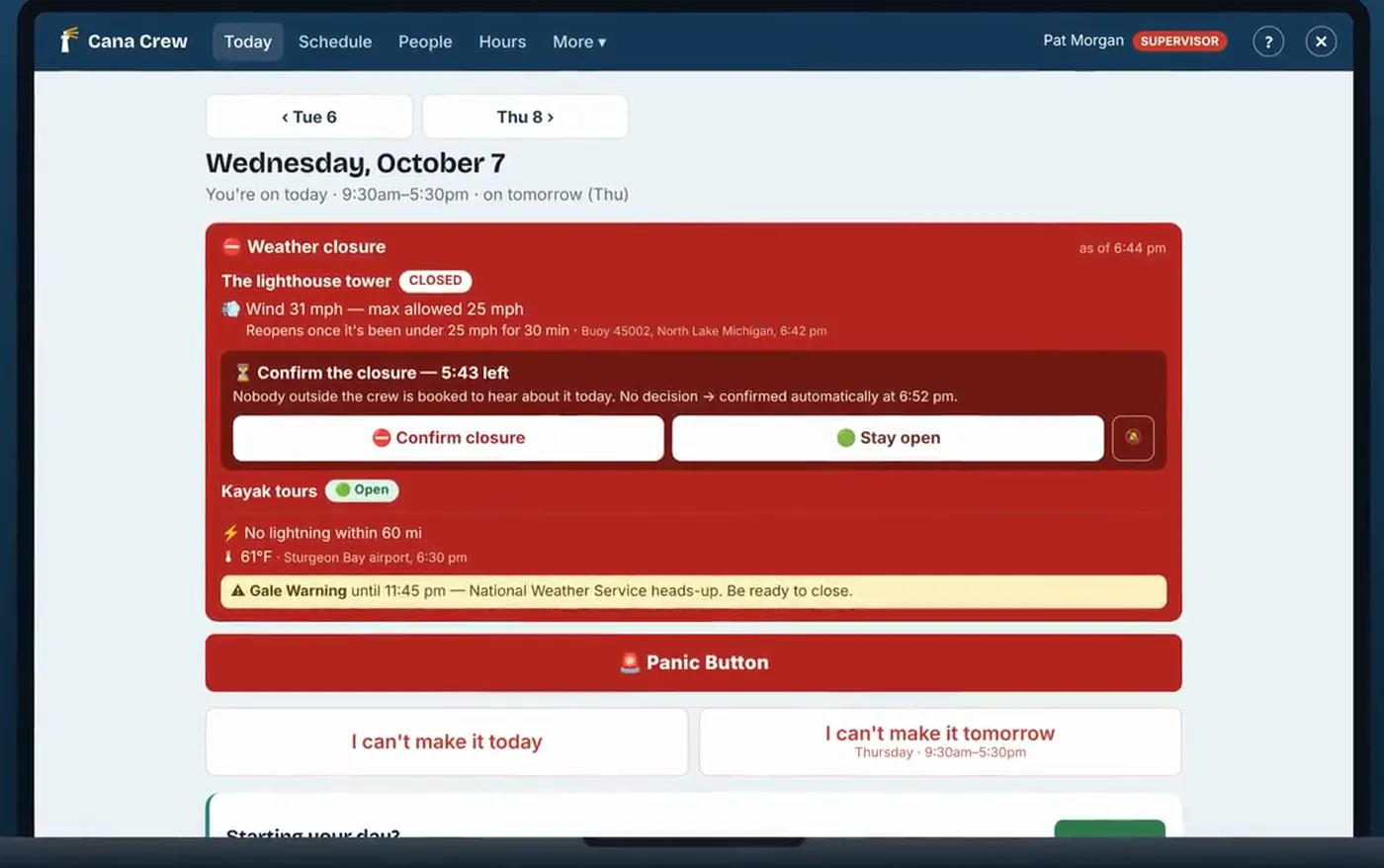
With the Weather Safety Protocol on, Cana Crew watches lightning and wind for you. When a limit is hit, it closes that site, tells everyone working, and gives you a countdown: confirm the closure, or stay open, with your reason logged.
And the small things: tap They're here when a bus group arrives, so the whole crew knows. Add a note for the day that everyone working will see. And mark a Logbook entry handled once it's dealt with.
Administrators
Administrators plan. Everything only you do lives under More, then Planning. A number on More means something's waiting. Needs a look lists it: a request to change days, a short day ahead, a month nobody's built, timecards due.
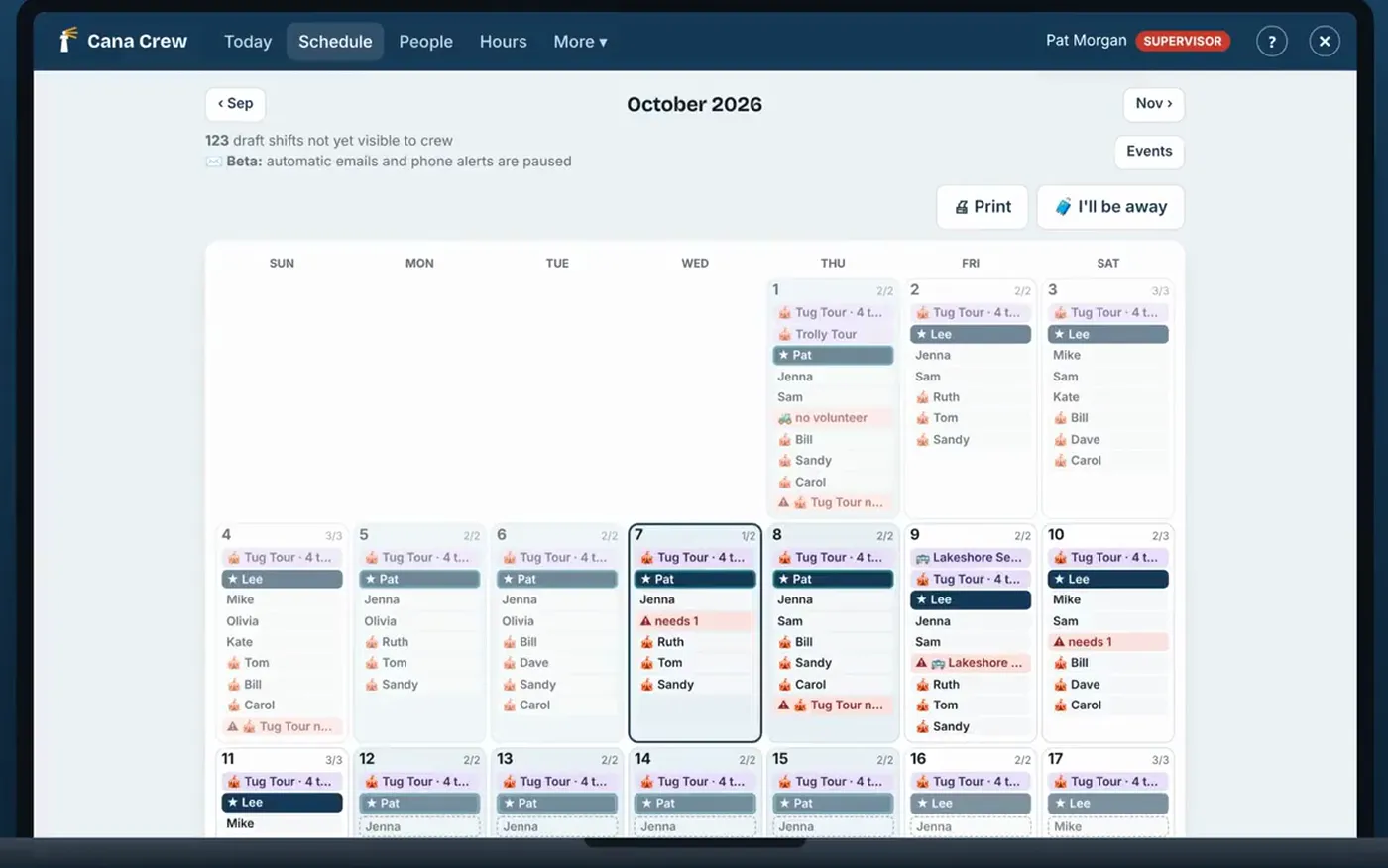
To build, pick the month and tap Build the schedule. It puts a supervisor on every open day, gives people their regular days, most senior first, and fills the gaps from the days they said they might work. Everything lands as a draft. Look it over, fix anything by hand, then Publish. Everyone gets one email with their days, and the shared calendar updates on its own.
On People, add someone with their name, email, level and start date — the start date is their seniority. They get an invitation and a short walk-through for their role. Levels set the titles and who's asked first for cover. Skill badges decide who can fill a job that needs training.
Events hold everything that isn't a normal day: a bus group with its size and contact, tours at set times, a festival, a closed day. Close a day, and the groups booked that day are emailed for you.
When someone can't make it, the cover finder asks people one at a time, in your order. It never asks overnight, from 9 at night to 7 in the morning, except for today. If it runs out of people, every administrator gets one email listing who was asked and what each said.
On the pay period's due date, approve the timecards. The day after it closes, you get one email with a link: tap Send, and the approved hours go to whoever runs your payroll. Never by themselves.
In Settings: your words, your season and hours, the weather rules for each site, and your own emergency plans — the steps that open when the Panic Button is pressed. The administrator pages ask for a 6-digit code from Google Authenticator, once on each phone or computer. And First Mate, in Help, answers questions in plain words — how to do something, or why a day looks the way it does.
That's Cana Crew. If you get stuck, the question mark on any page has the answer. Cana Crew: on time, on watch, never in the dark.